User Interface
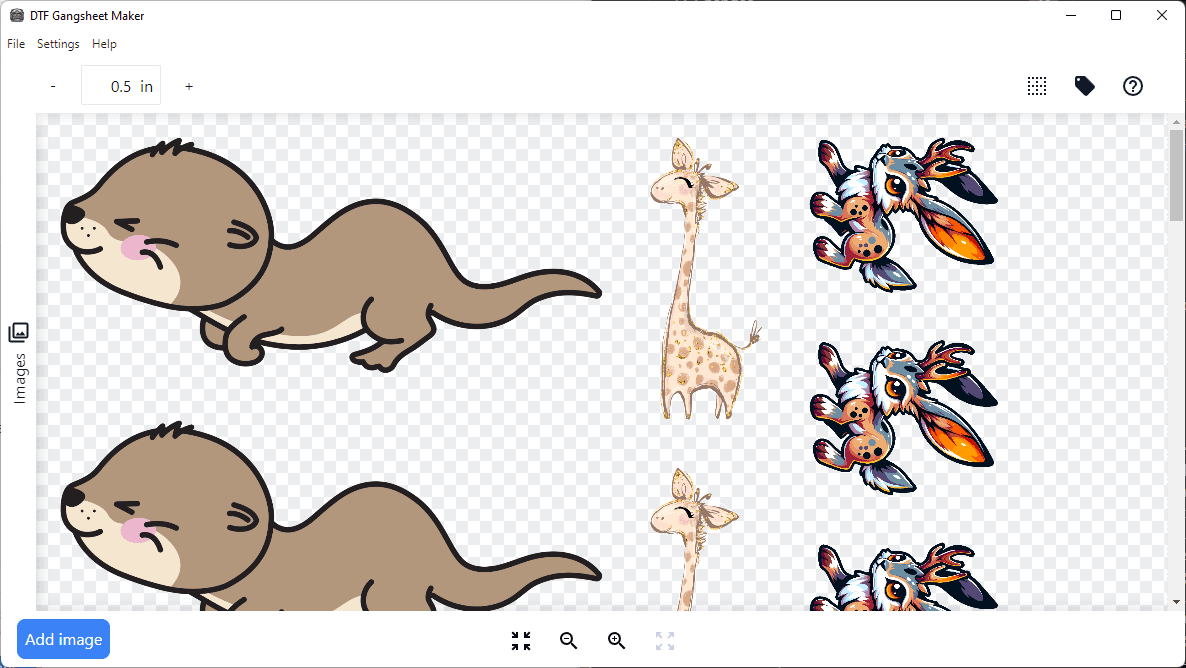
The user interface for DTF Gangsheet Maker has been designed to be simple and intuitive. The main screen is divided into three sections:
- The header toolbar, containing modifiers (5 and 6)
- The image preview area and image list (1 and 3)
- The footer toolbar, containing preview view controls and “Add Image” shortcut (2 and 4)
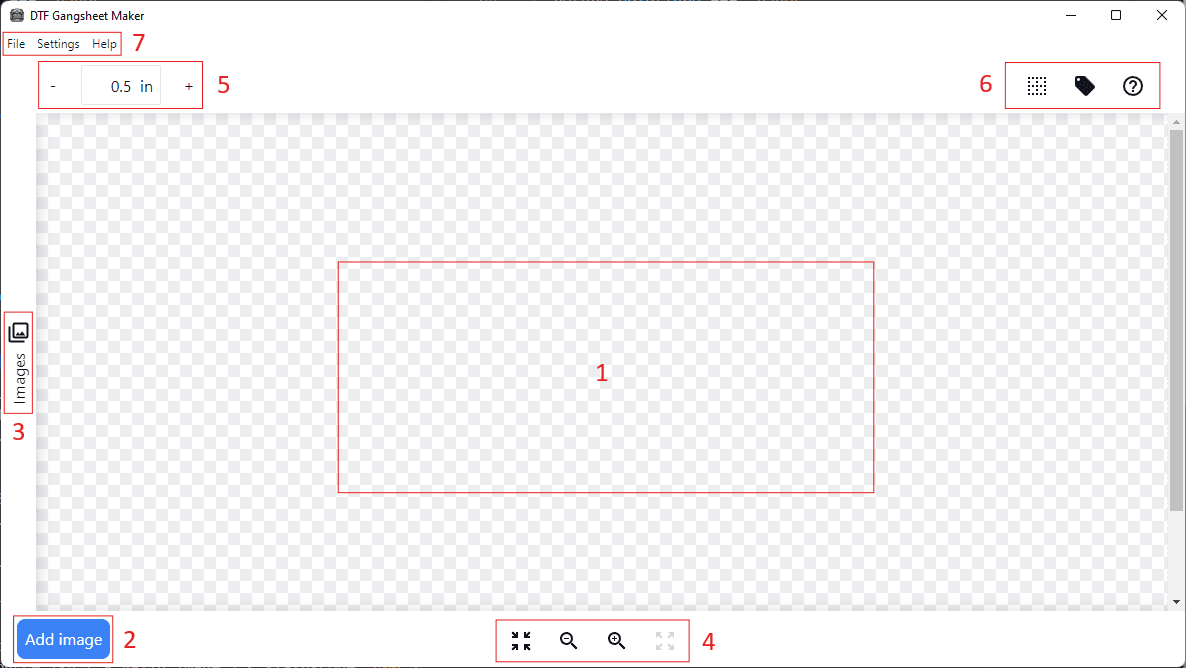
1. Preview pane
All images added to the gangsheet are displayed in the preview pane. Images are automatically positioned for optimized layout and minimized waste.
2. Add Image Shortcut
Click the Add Image button to open the image dialog where you can select the source file and configure the image scale. See Adding Images for more information.
3. Image List
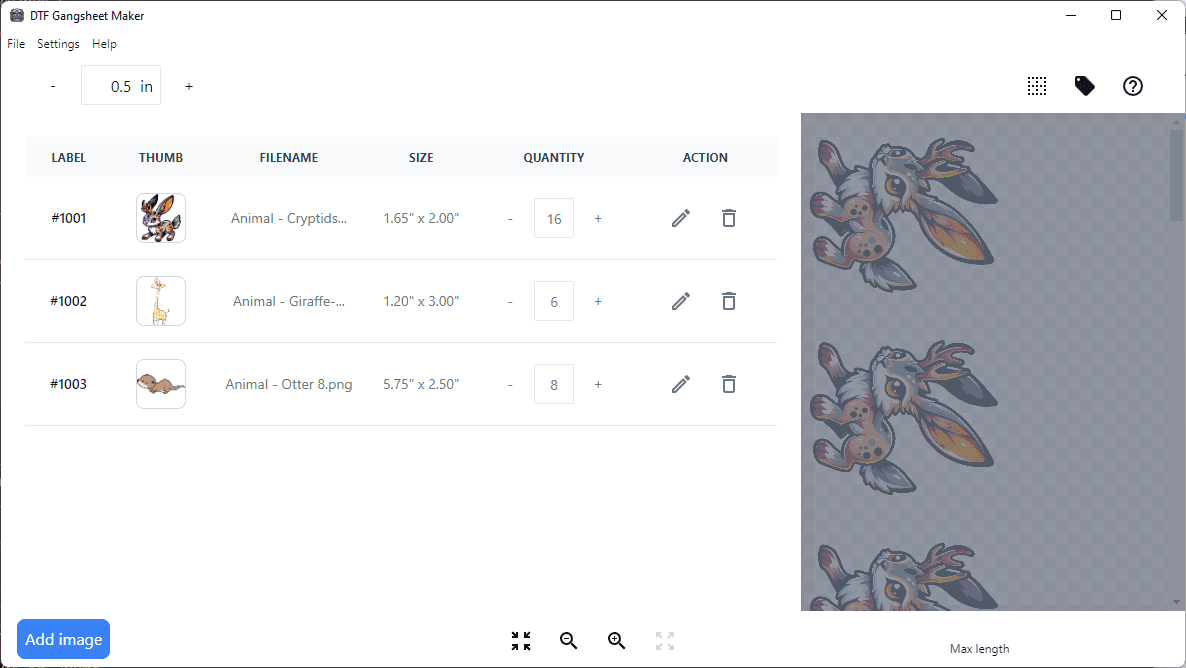
Images currently added to the gangsheet are displayed in the image list. The list displays the label, thumbnail, size and quantity.
Quantity can be adjusted by clicking the + and - buttons.
To remove an image from the gangsheet, click on the button or set the quantity to 0.
To make other changes to the image, such as the source, size or name, click the icon. See Adding Images for more information.
4. View controls
You can adjust the zoom level of the Preview Pane using the zoom controls in the footer toolbar.
The button will fit the entire gangsheet to the preview pane while the button will zoom out to fit the width of the application window.
You may control zoom level incrementally with the and buttons.
5. Padding
Adjust the padding around images by entering a value or by clicking the + and - buttons. Padding is entered in inches in increments of 0.25 in. Accurate print spacing requires the correct DPI be configured in the Print settings dialog. See Print Settings for more information.
6. Modifiers
Cut lines: A dotted outline can be toggled to show or hide the cut lines for each image. The cut lines are used to trim the film to the correct size for printing. Space between images and the cut lines is determined by the padding setting. When enabled, cut lines will be visible in both the preview pane and the final output.
Order labels: Order labels can be toggled on and off to show or hide the order names entered when adding images. In order to allow enough space for order labels without overlapping images, additional spacing is automatically added between images which may result in a less optimized layout.
Help: Click the help icon to open this documentation site in a new tab.
7. Application Menus
File: Contains “New Gangsheet”, “Add Image”, “Save Gangsheet”, “Import from Shopify”, and “Exit”.
Settings: Contains “Print Settings”, “Shopify Settings”, and “Licence Settings”.
Help: Contains “Documentation”, and “Purchase Licence”.