Adding Images
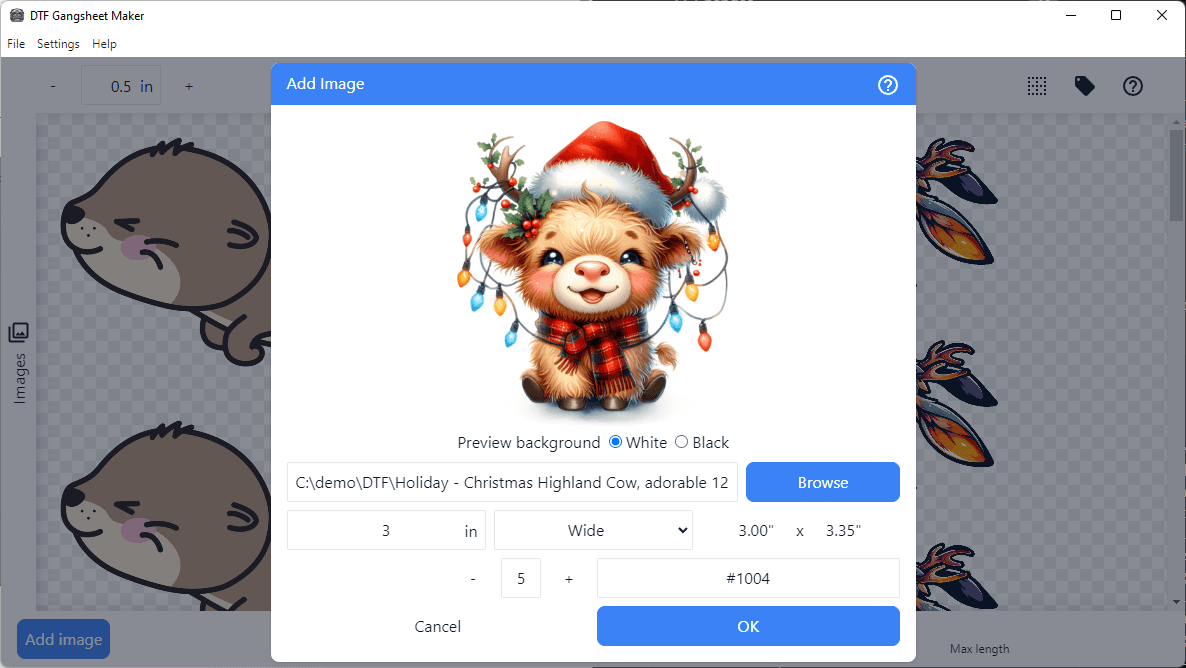
Images can be added from the File menu, by dragging and dropping an image file on the application, or by clicking the Add Image shortcut on the main application window.
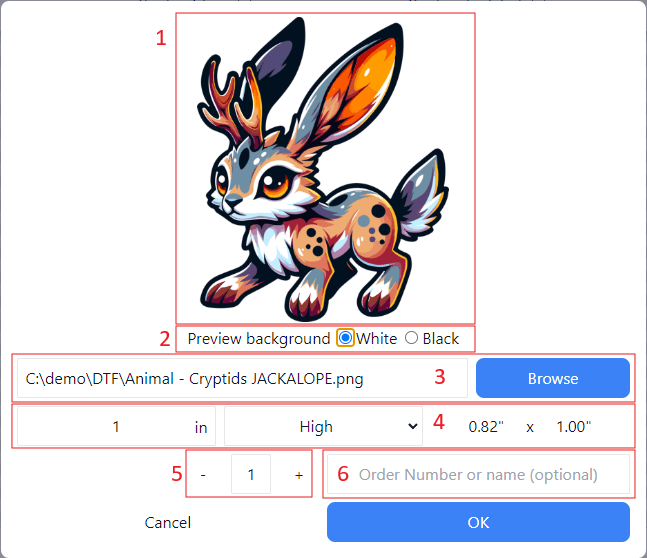
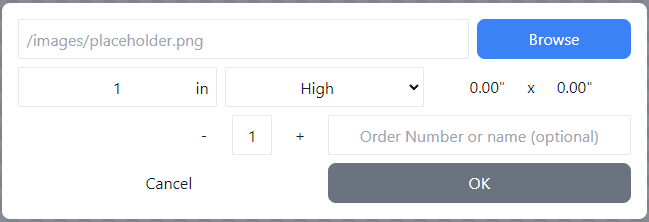
When the Add Image dialog is first opened, no image preview is available, unless the dialog was opened by dropping an image on the application.
1. Image Preview
When an image is selected, a preview is displayed in the image preview area. The background colour is controlled by Preview background, below.
2. Preview Background
The background color of the image preview can be toggled between black and white. This allows for the verification of transparency and can help in spotting ghost pixels prior to printing.
3. Image selection
The image selection area allows for the selection of the image source file.

Click on the browse button to open a file dialog to select a local image file.
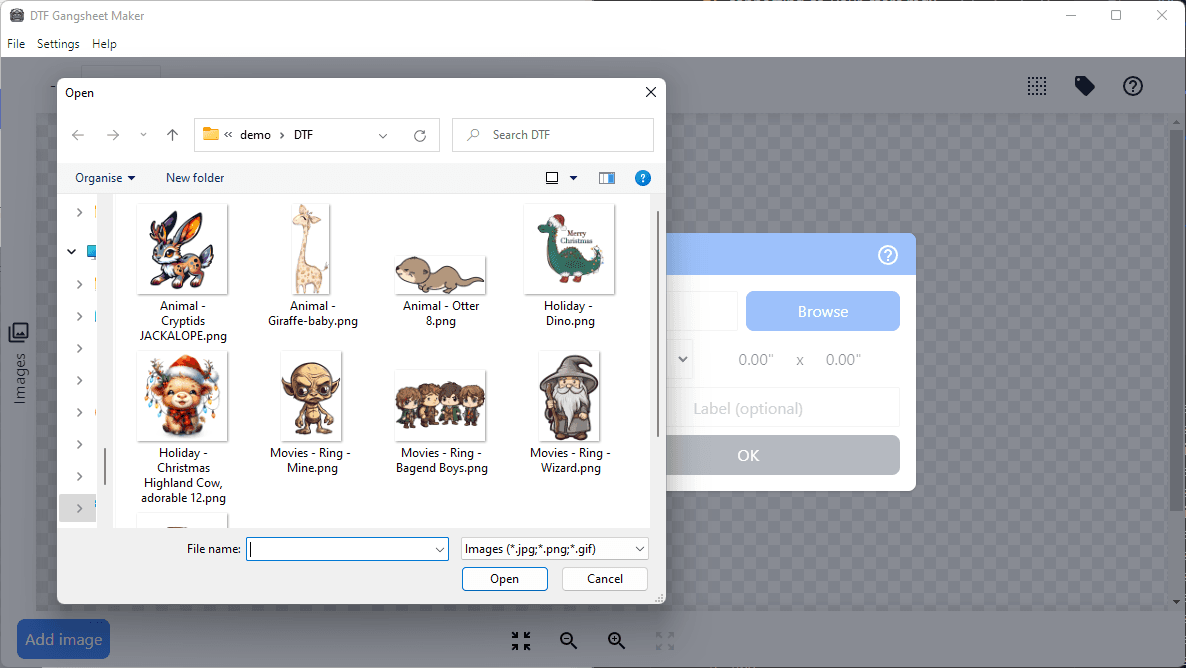
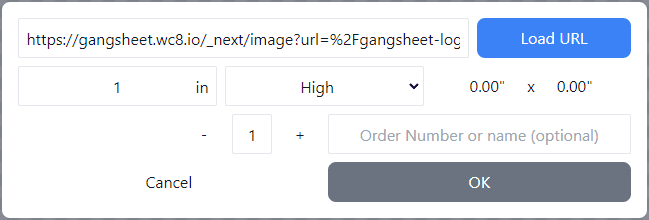
Alternatively, you may enter a URL to an image file from the web.
4. Image scale
Enter the output size of the image and select either High or Wide. The image will be scaled, maintaining the aspect ratio using the entered size value.


5. Image quantity
Enter the quantity of the selected image to add to the gangsheet. Images are grouped in the Image List by order label, size and direction (high or wide).
6. Order label
You may optionally add an order label to the image. This label will be displayed in the Image List and on the gangsheet when Print Order Labels is enabled.
