Import From Shopify
Connecting DTF Gangsheet Maker to your Shopify store requires a few steps before this one. If you have not already done so, please see the Shopify Integration page for more information.
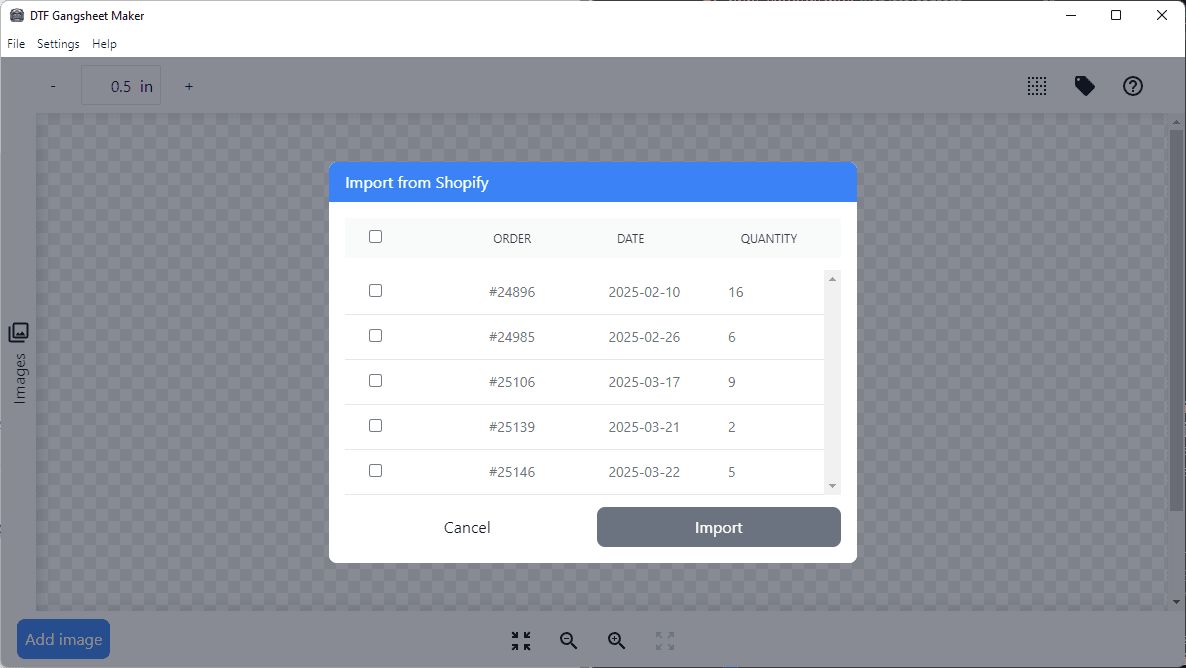
To import orders and images from Shopify, click on File > Import from Shopify.
In the dialog that appears, select the orders you wish to import. If no orders appear, check your Shopify settings in DTF Gangsheet Maker to ensure they are correct.
Note: If using a Sku prefix, only those orders placed after the sku was configured in Shopify will be available for import.
Click the Import button to import the selected orders. All images found in matching your configured line item attributes will be imported with the sold quantity. If you also configured sku size suffixes, images will be automatically scaled as per the suffix.
Missing images
If an image path (local or remote) cannot be resolved, the affected line will be highlighted in the Image List with a red background. You can then manually update the image path by clicking the button and replacing the image.
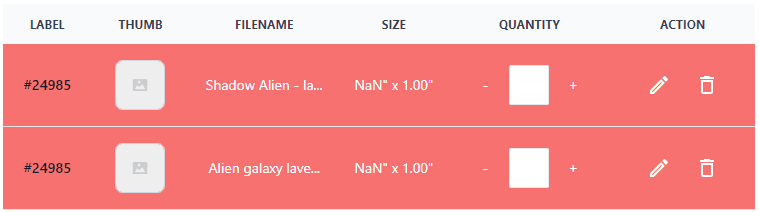
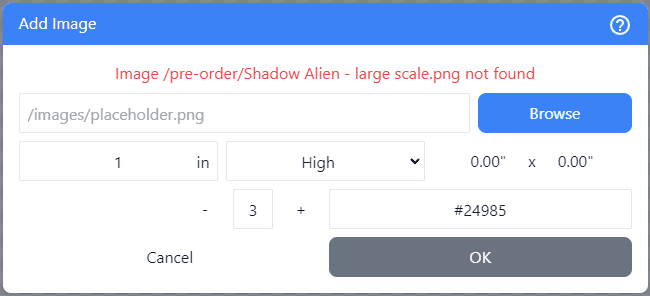
Once you correct the image path, the line will be updated with the new image and the red background will be removed.