Custom Shopify App
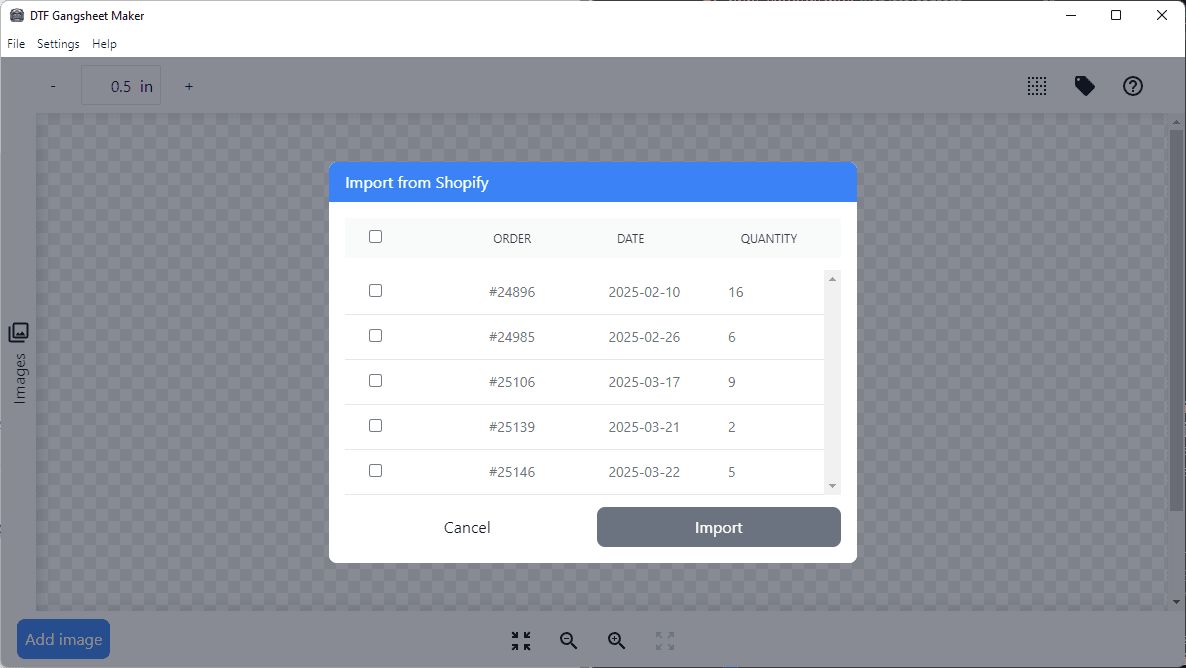
To connect Shopify to DTF Gangsheet Maker, you must create a custom app in your Shopify store. This app will allow DTF Gangsheet Maker to import orders and images directly from your store.
Step 1: Enable App Development
In your Shopify Admin, navigate to Settings > Apps and sales channels then click on the “Develop apps” button.
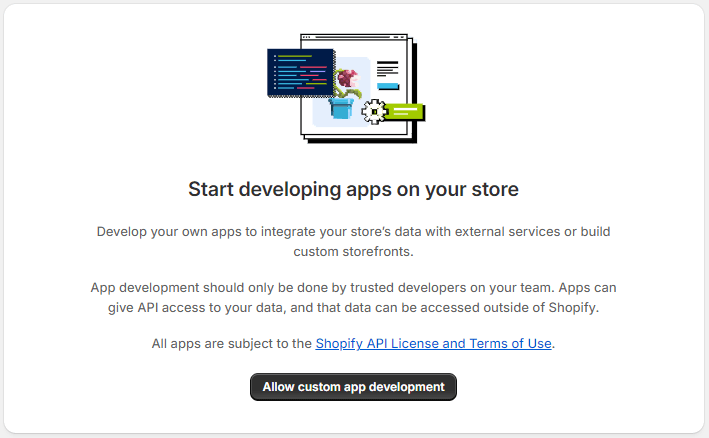
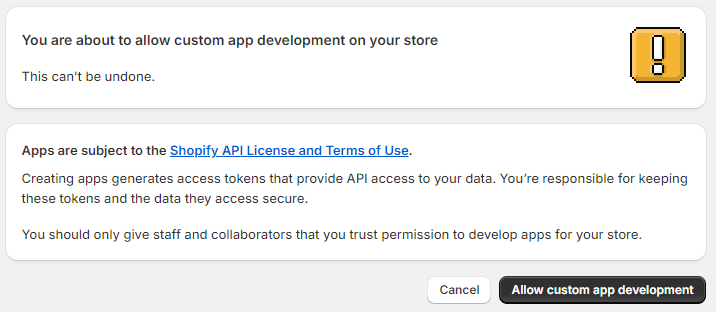
If this is the first custom app you have created, you will need to click on “Allow custom app development” to continue.
Step 2: Create an App
Click on the “Create custom app” button to create a new app.
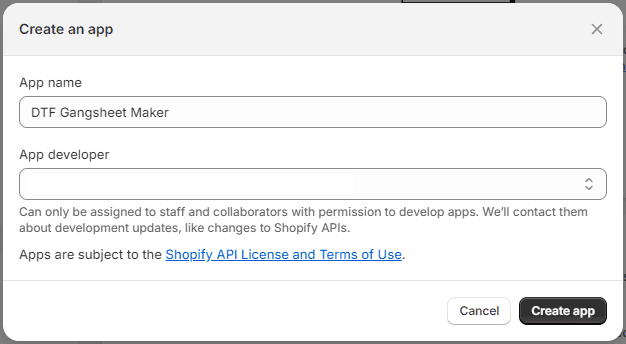
Enter “DTF Gangsheet Maker” as the app name and click on Create app.
Step 3: Configure Permissions
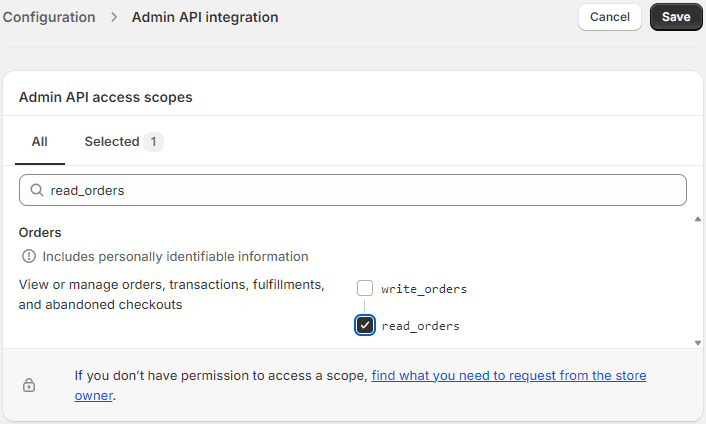
DTF Gangsheet Maker requires only the Read Orders permission to import orders and images from your store.
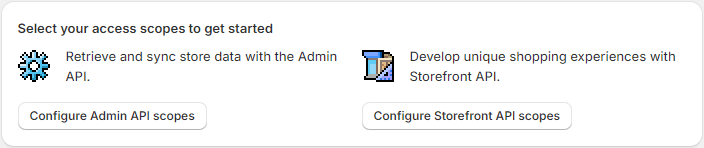
Click on “Configure Admin API scopes” to configure the permissions.
Select the “read_orders” permission and click on Save.
Step 4: Get API Access Token
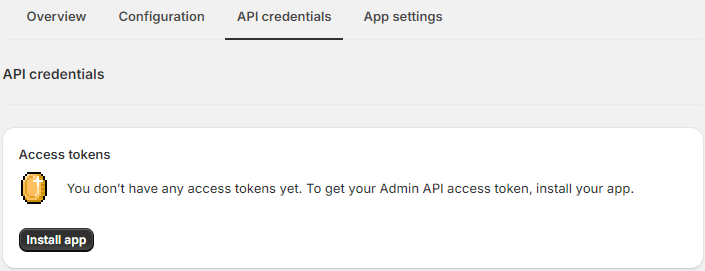
Click on the API Credentials tab.
Before you can create an API access token, you must first install the custom app in your store. Click on “Install app”. In the modal that appears, click on “Install”.
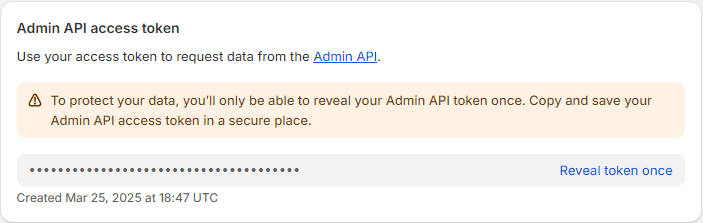
An API access token will be generated. For security reasons, a token can only be viewed once. Copy the token and save it in a secure location. You will need it when configuring Shopify Settings in DTF Gangsheet maker in the next steps.