Configure Theme
For DTF Gangsheet Maker to import images from Shopify, orders line items must include a line item property with the path to the image. This can be a local file path or a remote URL.
Some Shopify Apps do this automatically, for example Upload‑Lift Image Upload which allows customers to upload images when placing an order.
If you are using local images, you must include the path to the image as a line item property. This can be done by modifying your theme to include the line item property as part of the product Add To Cart form.
Every Shopify theme is different, therefore the instructions below are provided as guidance only. You may need to consult with your theme developer or Shopify support for assistance.
Modify your theme
Before making modifications to your theme, it is recommended to create a duplicate. Changes should be made in the duplicate theme where they can be previewed and tested without impacting your live store.
Step 1: Open the theme code editor
In your Shopify Admin, navigate to Online Store > Themes and click on the ”…” button for the theme you wish to modify and click on “Edit code”.
Step 2: Locate the product form
You are looking for the product form found on the product details page. If your theme is fairly recent, this will most likely be found in the snippets or sections folders. The file might be named main-product.liquid or product-form.liquid. Try searching for the word product to filter the results.
You are looking for a line that looks something like this:
<form action="/cart/add" method="post" enctype="multipart/form-data" id="product-form" class="product__form">or this:
{%- form 'product', product, data-productid: product.id, class: 'product__form' -%}Your theme may look a little different, but the key is to find the form that is used to add the product to the cart.
Step 3: Add the line item property
Within the product form, you will need to add a hidden input field to capture the image path. This can be done by adding the following code:
<input type="hidden" name="properties[_imagePath]" value="{{ product.featured_image.src | img_url: 'master' }}"></input>The above code will use the featured image of the product as the image path. If you have multiple images, you may need to modify this code to select the correct image.
If you have your images stored in a local folder on your device, you can use a Product Metafield to store the path to the image and pass that information to the hidden field instead.
See the Shopify Metafields documentation for more information on how to create and manage metafields.
The following code assumes you have a metafield with the namespace dtf and the key imagepath configured.
<input type="hidden" name="properties[_imagePath]" value="{{ product.metafield.dtf.imagepath }}"></input>Verifying the changes
After saving the changes to your theme, you should verify that the line item property is being added to the cart.
When an order is successfully placed, the line item properties are visible in the Shopify Order details. Navigate to the test order and verify that the line item properties you added are visible on the items. It should look something like this:
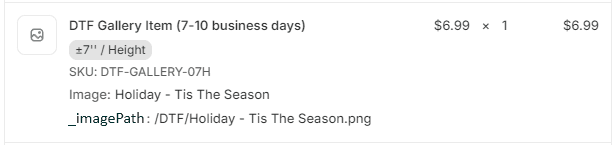
When using a local image library that has subfolders, the line item attribute (ie _imagePath) value should include the subfolder path, for example /subfolder/image.jpg. If it is a single folder with all images, the line item attribute should contain the leading / followed by the image name, for example /image.jpg.
If everything looks good, you are ready to configure DTF Gangsheet Maker to import orders from Shopify. See Shopify Settings for more information.